Friday, November 2, 2012
Java - Missing User When Querying Active Directory
In an application that I'm working on I'm using the "DirContext" to query Active Directory for users and permissions. A new user wasn't showing up in the query results. It turned out that since I was filtering my search on the City and he was set up without having an entry for City he wouldn't be returned in the search.

Friday, October 26, 2012
jQuery - Append an Image and Handle the Click Event
In a web application that I developed I was asked to modify the contents of on input tag when a buttom was clicked. Since the application was designed to use the same JSP page for all table edits I didn't want to create a custom JSP page for this table. So I added the button using jQuery.
Here is the JSP for the page:
Here's what the page is doing:
The global edit page, "recordEdit.jsp", is loaded.
The jQuery script, "$('#dispurlLinkToFile').after", is adding an icon after the input field with the id of "dispurlLinkToFile". The image tag is assigned an id of "imgUrlLinkToFile".
The jQuery script for the "imgUrlLinkToFile" click function takes the vale from the tag with the id "dispinternalRefNum", replaces "-" with "_", which gets added to "https://ABC.XYZ.org/ProposalDev/Proposals/" and written to "dispurlLinkToFile".
So we go from our original:
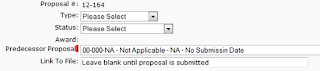
To the same with or image added:
 Then when the button is clicked the field is populated:

Here is the JSP for the page:
<jsp:include page="../genBase/recordEdit.jsp" />
<script>
$(document).ready(function(){
$('#dispurlLinkToFile').after(' <img title="Generate URL location" id="imgUrlLinkToFile" style="border-top-color: currentColor; border-right-color: currentColor; border-bottom-color: currentColor; border-left-color: currentColor; border-top-width: 0px; border-right-width: 0px; border-bottom-width: 0px; border-left-width: 0px; border-top-style: none; border-right-style: none; border-bottom-style: none; border-left-style: none;" alt="Generate URL location" src="../images/max1t.gif"/>');
$('#imgUrlLinkToFile').click(function() {
 $('#dispurlLinkToFile').val('https://ABC.XYZ.org/ProposalDev/Proposals/'+$('#dispinternalRefNum').val().replace(/-/g,"_")+'.zip');});
});
</script>
Here's what the page is doing:
The global edit page, "recordEdit.jsp", is loaded.
The jQuery script, "$('#dispurlLinkToFile').after", is adding an icon after the input field with the id of "dispurlLinkToFile". The image tag is assigned an id of "imgUrlLinkToFile".
The jQuery script for the "imgUrlLinkToFile" click function takes the vale from the tag with the id "dispinternalRefNum", replaces "-" with "_", which gets added to "https://ABC.XYZ.org/ProposalDev/Proposals/" and written to "dispurlLinkToFile".
So we go from our original:
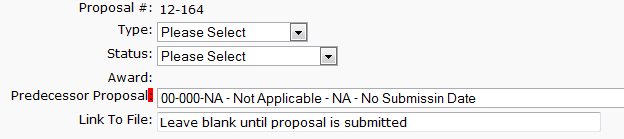
To the same with or image added:


Friday, October 19, 2012
SharePoint 2010 - External List Authentication
Another thing that constantly gets me - whenever you set up an secure store application and do not set it up as a group type (individual is the default) you will get the "Click here to authenticate" link on the list in SharePoint!
SQL - Table Changes and Views
One of the things that I still get hung up on is the need to update table views when I add or delete columns. The most common thing that happens is a "field not found" type of error. Then yesterday I was working in SharePoint designer and received an error that said "View or function 'XXX.dbo.vwXXX' has more column names specified than columns defined". Doing an ALTER view is SQL manager solved the problem.
Wednesday, October 10, 2012
jQuery - Posting Large Forms
I had a grid table that I was submitting that stopped submitting once the table grew. I'm using the jQuery "load" function to submit the form and return the results. It turns out that if you use the jQuery "serialize" function to serialize a form then jQuery will do a GET. Use the jQuery "serializeArray" function so that jQuery does a POST!
Monday, October 8, 2012
Tomcat - Authentication Problem With IE
I'm using the Waffle library for authentication in a web application. The authentication wouldn't work in Internet Explorer because the site is listed as one of the Intranet Sites in IE. The solution was to add the following JavaScript to the log in page:
<script type="text/javascript">
  document.domain="example.com";
</script>
SQL - Import Data
A few pointers on importing data into a SQL database.
The project that I'm currently working on required data to be imported into SQL server from a different database. Fortunately, SQL Management Studio has a nice feature for importing data. But importing data into SQL is not that strait forward. Things can go wrong depending on the type of data that your importing so it pays to spend some time looking at the data that you are going to be importing before you start.
The database that I was exporting the data from gave me three options for export; Comma Separated Values (CSV), Tab Separated Values (TSV), and XML. CSV was the one that I used the most and XML wasn't useful at all with the data that I needed to export.
My first attempt was importing the CSV file into SQL. This didn't work at all because I had a field the contained carriage returns and line feeds. Since a record is denoted by a new line you can see how this would cause a problem. Other fields like date fields could also cause problems with the import.
The next step was to open the CSV file in Excel and save it as an Excel (xls) file. In some cases this was all that I needed to do to be able to import the data into SQL.
When the Excel file wouldn't work I would import either the CSV or the Excel file into Access. The nice thing about doing the Access import is that Access will show you the records and fields where it's having a problem with the data. The Access file import into SQL usually worked but occasionally I would need to change the field type in the Access database.
The last thing that caused a problem was bogus (end of line ) characters in foreign key fields. This prevented my SQL statements from being able to match the foreign keys from the imported data with my SQL tables. They would show up as space characters and were not removable using the SQL RTIM function because they are not a space character! The fix for that was the following SQL to remove the problem characters:
One final piece of advice - unless you are dealing with a very simple table, do not try to import the data directly into your final, target SQL tables. Import the data into an intermediary table first where you can massage the data before transferring the data to your target SQL tables.
The project that I'm currently working on required data to be imported into SQL server from a different database. Fortunately, SQL Management Studio has a nice feature for importing data. But importing data into SQL is not that strait forward. Things can go wrong depending on the type of data that your importing so it pays to spend some time looking at the data that you are going to be importing before you start.
The database that I was exporting the data from gave me three options for export; Comma Separated Values (CSV), Tab Separated Values (TSV), and XML. CSV was the one that I used the most and XML wasn't useful at all with the data that I needed to export.
My first attempt was importing the CSV file into SQL. This didn't work at all because I had a field the contained carriage returns and line feeds. Since a record is denoted by a new line you can see how this would cause a problem. Other fields like date fields could also cause problems with the import.
The next step was to open the CSV file in Excel and save it as an Excel (xls) file. In some cases this was all that I needed to do to be able to import the data into SQL.
When the Excel file wouldn't work I would import either the CSV or the Excel file into Access. The nice thing about doing the Access import is that Access will show you the records and fields where it's having a problem with the data. The Access file import into SQL usually worked but occasionally I would need to change the field type in the Access database.
The last thing that caused a problem was bogus (end of line ) characters in foreign key fields. This prevented my SQL statements from being able to match the foreign keys from the imported data with my SQL tables. They would show up as space characters and were not removable using the SQL RTIM function because they are not a space character! The fix for that was the following SQL to remove the problem characters:
Update [QuickBaseImportsv1].[dbo].[SubAgreements3]
set [Task#] = ltrim(rtrim(replace([Task#], char(160), char(32))))
Update [QuickBaseImportsv1].[dbo].[SubAgreements3]
set [Task#] = ltrim(rtrim(replace([Task#], char(10), char(32))))
Update [QuickBaseImportsv1].[dbo].[SubAgreements3]
set [Task#] = ltrim(rtrim(replace([Task#], char(13), char(32))))
One final piece of advice - unless you are dealing with a very simple table, do not try to import the data directly into your final, target SQL tables. Import the data into an intermediary table first where you can massage the data before transferring the data to your target SQL tables.
Subscribe to:
Posts (Atom)