Showing posts with label SQL Server. Show all posts
Showing posts with label SQL Server. Show all posts
Thursday, February 17, 2022
SQL - Connecting to Integration Services Access is Denied
I was trying to get into SQL Server Integration Services (SSIS) and received the "Connecting To The Integration Services Server On The Computer "X" Failed With The Following Error: "Access Is Denied." error. I checked the permissions in Component Services, DCOM Config, Microsoft SQL Server Integration Services, and had permission, so I knew that I had permissions. What worked for me was to run SSMS as adminitrator.

Wednesday, November 4, 2015
MS SQL Error Log Files
Yes, there are backup application log files and they can be very helpful in figuring out the cause of a backup failure. In my case I was getting the "Backup BACKUP failed to complete the command BACKUP DATABASE database_name. Check the backup application log for detailed messages.", "Backup Error: 3041, Severity: 16, State: 1" error like the following:

Checking the log file, which on my server is located in the "SQL\MSSQL12.MSSQLSERVER\MSSQL\Log" folder, I get the following:

Checking the log file, which on my server is located in the "SQL\MSSQL12.MSSQLSERVER\MSSQL\Log" folder, I get the following:

Friday, February 28, 2014
SQL - List All Stored Procedures
I needed to get a list of all of the Stored Proceduresin a database. This is the script that I used:
select ROUTINE_NAME as [Name], LAST_ALTERED as [Date Modified], ROUTINE_DEFINITION as Script
from information_schema.routines
where routine_type = 'PROCEDURE'
Thursday, January 30, 2014
SQL - List Last Database Backup Date
There is one server with a bunch of databases with some being backed up. I needed to see which ones were being backed up.
Here is the script I used:
Here is the script I used:
Select dtb.name as [Database Name], (select max(backup_finish_date) from msdb..backupset
where type = 'D' and database_name = dtb.name
) AS [Last Database Backup Date] ,
(select max(backup_finish_date) from msdb..backupset
where type = 'L' and database_name = dtb.name
) AS [Last Log Backup Date]
FROM
master.dbo.sysdatabases AS dtb
Monday, January 13, 2014
SQL - List All Triggers In A Database
I needed to get a list of all of the triggers in a database. This is the script that I used:
select sysT.name as [Table Name], sysO.name as [Trigger Name], sysM.definition as [Trigger Script] from  sys.tables sysT
inner join sys.objects sysO on sysT.object_id = sysO.parent_object_id
inner join sys.sql_modules sysM on sysO.object_id = sysM.object_id
where sysO.type ='TR'
Tuesday, December 24, 2013
SQL - Recover System Databases
So we had one of those unfortunate things happen that you hope never happens - our SQL server database drive died. Not the drive running SQL, the drive that held the databases. Luckily we had backups of the databases. The drive was repaired but the drive also held the SQL system tables. Without the system tables SQL server will not run. I had the backups, the BAK files for the system tables, but to restore them you need something to restore them to.
To recover the five system databases that I needed, master, model, msdb, tempdb, and distribution, I used another database server. I created five databases and restored the backups to the newly created databases. Then I copied the database files, the MDFs and LDFs, to the location that my crashed server was expecting to find them and renamed them to the file names that I knew the server would be looking for. When everything was in place I clicked start on the sql service in the server manager and the server started!
The next day was spent recovering around forty databases. The databases were listed in SQL Server Management Studio (SSMS) but remember because of the crash there were no database files. For each one I used SSMS to create a new database and rename the database file, the MDFs and LDFs, to the names that the server was expecting. Then using SSMS I restored the backup.
Friday, April 12, 2013
SQL - List Size Information for all Tables
I needed to find how many records I had in the "look-up" tables for my web application. All of my look-up tables start with "lu".
This is the query I used:
Thanks to stackoverflow.
This is the query I used:
SELECT
    t.NAME AS TableName,
    p.rows AS RowCounts,
    SUM(a.total_pages) * 8 AS TotalSpaceKB,
    SUM(a.used_pages) * 8 AS UsedSpaceKB,
    (SUM(a.total_pages) - SUM(a.used_pages)) * 8 AS UnusedSpaceKB
FROM
    sys.tables t
INNER JOIN
    sys.indexes i ON t.OBJECT_ID = i.object_id
INNER JOIN
    sys.partitions p ON i.object_id = p.OBJECT_ID AND i.index_id = p.index_id
INNER JOIN
    sys.allocation_units a ON p.partition_id = a.container_id
WHERE
    t.NAME like 'lu%'
    AND t.is_ms_shipped = 0
    AND i.OBJECT_ID > 255
GROUP BY
    t.Name, p.Rows
ORDER BY
    p.rows
Thanks to stackoverflow.
Tuesday, April 9, 2013
SQL - Search All Tables and Fields for a Value
I needed to be able to search a database to find a value in any table and field. The first listing was too slow on my large database.
From http://vyaskn.tripod.com:
This one runs faster but lacks the detail of the first listing
From experts-exchange:
From http://vyaskn.tripod.com:
CREATE PROC SearchAllTables
(
@SearchStr nvarchar(100)
)
AS
BEGIN

-- Copyright © 2002 Narayana Vyas Kondreddi. All rights reserved.
-- Purpose: To search all columns of all tables for a given search string
-- Written by: Narayana Vyas Kondreddi
-- Site: http://vyaskn.tripod.com
-- Tested on: SQL Server 7.0 and SQL Server 2000
-- Date modified: 28th July 2002 22:50 GMT

CREATE TABLE #Results (ColumnName nvarchar(370), ColumnValue nvarchar(3630))

SET NOCOUNT ON

DECLARE @TableName nvarchar(256), @ColumnName nvarchar(128), @SearchStr2 nvarchar(110)
SET  @TableName = ''
SET @SearchStr2 = QUOTENAME('%' + @SearchStr + '%','''')

WHILE @TableName IS NOT NULL
BEGIN
    SET @ColumnName = ''
    SET @TableName =
    (
        SELECT MIN(QUOTENAME(TABLE_SCHEMA) + '.' + QUOTENAME(TABLE_NAME))
        FROM    INFORMATION_SCHEMA.TABLES
        WHERE       TABLE_TYPE = 'BASE TABLE'
  AND QUOTENAME(TABLE_SCHEMA) + '.' + QUOTENAME(TABLE_NAME) > @TableName
  AND OBJECTPROPERTY(
  OBJECT_ID(
  QUOTENAME(TABLE_SCHEMA) + '.' + QUOTENAME(TABLE_NAME)
  ), 'IsMSShipped'
  ) = 0
    )

WHILE (@TableName IS NOT NULL) AND (@ColumnName IS NOT NULL)
BEGIN
 SET @ColumnName =
 (
  SELECT MIN(QUOTENAME(COLUMN_NAME))
  FROM    INFORMATION_SCHEMA.COLUMNS
  WHERE       TABLE_SCHEMA    = PARSENAME(@TableName, 2)
  AND TABLE_NAME  = PARSENAME(@TableName, 1)
  AND DATA_TYPE IN ('char', 'varchar', 'nchar', 'nvarchar')
  AND QUOTENAME(COLUMN_NAME) > @ColumnName
 )
 IF @ColumnName IS NOT NULL
 BEGIN
  INSERT INTO #Results
  EXEC
  (
  'SELECT ''' + @TableName + '.' + @ColumnName + ''', LEFT(' + @ColumnName + ', 3630)
  FROM ' + @TableName + ' (NOLOCK) ' +
  ' WHERE ' + @ColumnName + ' LIKE ' + @SearchStr2
  )
 END
END
END

SELECT ColumnName, ColumnValue FROM #Results
END
This one runs faster but lacks the detail of the first listing
From experts-exchange:
Declare @TN as varchar(200), @CN as varchar(200), @myValue varchar(30), @SQL as nvarchar(1000)
, @SN as varchar(200), @Exact_Match bit

Create Table #myTable (Table_Name varchar(200), Column_Name varchar(200), Number_Of_Rows int)

-- Replace @myValue with the value you're searching for in the database
Set @myValue = 'Value to Search'
-- 0 for LIKE match, 1 for exact match
Set @Exact_Match = 1

Declare myCursor Cursor For
Select T.Table_Name, C.Column_Name, T.Table_Schema
From INFORMATION_SCHEMA.TABLES T Inner Join INFORMATION_SCHEMA.COLUMNS C
On T.Table_Schema = C.Table_Schema And T.Table_Name = C.Table_Name
Where T.Table_Name <> 'dtproperties' And Table_Type = 'Base Table'
And C.Data_Type In ('varchar','char','nvarchar','nchar','sql_variant')
--And C.Data_Type In ('text','ntext')
--And C.Data_Type In ('tinyint','int','bigint','numeric','decimal','money','float','smallint','real','smallmoney')
--And C.Data_Type In ('datetime','dmalldatetime')
-- Fields not searched: image, uniqueidentifier, bit, varbinary, binary, timestamp
Open myCursor
Fetch Next From myCursor Into @TN, @CN, @SN
While @@Fetch_Status <> -1
Begin
If @Exact_Match = 0
Set @SQL = N'Insert Into #myTable Select ''' + @SN + '.' + @TN + ''', ''' + @CN + ''', Count(*) From [' + @SN + '].[' + @TN + '] Where [' + @CN + '] Like ''%' + @myValue + '%'''
Else
Set @SQL = N'Insert Into #myTable Select ''' + @SN + '.' + @TN + ''', ''' + @CN + ''', Count(*) From [' + @SN + '].[' + @TN + '] Where [' + @CN + '] = ''' + @myValue + ''''
--Print @SQL
Exec sp_executesql @SQL
Fetch Next From myCursor Into @TN, @CN, @SN
End
Close myCursor
Deallocate myCursor
Select * From #myTable Where Number_Of_Rows > 0 Order By Table_Name
Drop Table #myTable
SQL - List All Triggers
I'm working on a large database with over 2400 tables and I wanted to know what all of the triggers are and where they're located.
This is the query I ran to get that information:
This is the query I ran to get that information:
SELECT
   ServerName   = @@servername,
   DatabaseName = db_name(),
   SchemaName   = t.TABLE_SCHEMA,
   TableName    = object_name( o.parent_obj ),
   TriggerName  = o.name,
   Definition   = c.text
FROM sysobjects o
   JOIN syscomments c ON o.id = c.id
   JOIN INFORMATION_SCHEMA.TABLES t ON object_name( o.parent_obj ) = t.TABLE_NAME
WHERE o.type = 'TR'
ORDER BY SchemaName, TableName, TriggerName
Thursday, April 4, 2013
SQL - List Database Tables, Fields, and Other Information
There are a few SQL scripts around for listing table information. This is the one that I use. Just replace "YourDatabaseName" with the name of the database.
USE [YourDatabaseName];
SELECT OBJECT_SCHEMA_NAME(T.[object_id],DB_ID()) AS [Schema],
T.[name] AS [table_name], AC.[name] AS [column_name],
TY.[name] AS system_data_type, AC.[max_length],
AC.[precision], AC.[scale], AC.[is_nullable], AC.[is_ansi_padded]
FROM sys.[tables] AS T
INNER JOIN sys.[all_columns] AC ON T.[object_id] = AC.[object_id]
INNER JOIN sys.[types] TY ON AC.[system_type_id] = TY.[system_type_id] AND AC.[user_type_id] = TY.[user_type_id]
WHERE T.[is_ms_shipped] = 0
ORDER BY T.[name], AC.[column_id]
SQL - Listing All of the Records From Multiple Tables
I was asked to provide a list of all of the records from some look up tables that I use for my project. There are almost 60 look up tables! I spent some time thinking about how to do this in the SQL database. Then I realized, the easy answer is to connect MS Access to the SQL server and then select the tables I need and import them into Access.
Friday, October 19, 2012
SQL - Table Changes and Views
One of the things that I still get hung up on is the need to update table views when I add or delete columns. The most common thing that happens is a "field not found" type of error. Then yesterday I was working in SharePoint designer and received an error that said "View or function 'XXX.dbo.vwXXX' has more column names specified than columns defined". Doing an ALTER view is SQL manager solved the problem.
Monday, October 8, 2012
SQL - Import Data
A few pointers on importing data into a SQL database.
The project that I'm currently working on required data to be imported into SQL server from a different database. Fortunately, SQL Management Studio has a nice feature for importing data. But importing data into SQL is not that strait forward. Things can go wrong depending on the type of data that your importing so it pays to spend some time looking at the data that you are going to be importing before you start.
The database that I was exporting the data from gave me three options for export; Comma Separated Values (CSV), Tab Separated Values (TSV), and XML. CSV was the one that I used the most and XML wasn't useful at all with the data that I needed to export.
My first attempt was importing the CSV file into SQL. This didn't work at all because I had a field the contained carriage returns and line feeds. Since a record is denoted by a new line you can see how this would cause a problem. Other fields like date fields could also cause problems with the import.
The next step was to open the CSV file in Excel and save it as an Excel (xls) file. In some cases this was all that I needed to do to be able to import the data into SQL.
When the Excel file wouldn't work I would import either the CSV or the Excel file into Access. The nice thing about doing the Access import is that Access will show you the records and fields where it's having a problem with the data. The Access file import into SQL usually worked but occasionally I would need to change the field type in the Access database.
The last thing that caused a problem was bogus (end of line ) characters in foreign key fields. This prevented my SQL statements from being able to match the foreign keys from the imported data with my SQL tables. They would show up as space characters and were not removable using the SQL RTIM function because they are not a space character! The fix for that was the following SQL to remove the problem characters:
One final piece of advice - unless you are dealing with a very simple table, do not try to import the data directly into your final, target SQL tables. Import the data into an intermediary table first where you can massage the data before transferring the data to your target SQL tables.
The project that I'm currently working on required data to be imported into SQL server from a different database. Fortunately, SQL Management Studio has a nice feature for importing data. But importing data into SQL is not that strait forward. Things can go wrong depending on the type of data that your importing so it pays to spend some time looking at the data that you are going to be importing before you start.
The database that I was exporting the data from gave me three options for export; Comma Separated Values (CSV), Tab Separated Values (TSV), and XML. CSV was the one that I used the most and XML wasn't useful at all with the data that I needed to export.
My first attempt was importing the CSV file into SQL. This didn't work at all because I had a field the contained carriage returns and line feeds. Since a record is denoted by a new line you can see how this would cause a problem. Other fields like date fields could also cause problems with the import.
The next step was to open the CSV file in Excel and save it as an Excel (xls) file. In some cases this was all that I needed to do to be able to import the data into SQL.
When the Excel file wouldn't work I would import either the CSV or the Excel file into Access. The nice thing about doing the Access import is that Access will show you the records and fields where it's having a problem with the data. The Access file import into SQL usually worked but occasionally I would need to change the field type in the Access database.
The last thing that caused a problem was bogus (end of line ) characters in foreign key fields. This prevented my SQL statements from being able to match the foreign keys from the imported data with my SQL tables. They would show up as space characters and were not removable using the SQL RTIM function because they are not a space character! The fix for that was the following SQL to remove the problem characters:
Update [QuickBaseImportsv1].[dbo].[SubAgreements3]
set [Task#] = ltrim(rtrim(replace([Task#], char(160), char(32))))
Update [QuickBaseImportsv1].[dbo].[SubAgreements3]
set [Task#] = ltrim(rtrim(replace([Task#], char(10), char(32))))
Update [QuickBaseImportsv1].[dbo].[SubAgreements3]
set [Task#] = ltrim(rtrim(replace([Task#], char(13), char(32))))
One final piece of advice - unless you are dealing with a very simple table, do not try to import the data directly into your final, target SQL tables. Import the data into an intermediary table first where you can massage the data before transferring the data to your target SQL tables.
Friday, May 11, 2012
Using SQL to make a SharePoint Contact List
I needed to make a list of contact information for all of our offices using the contact information in Active Directory. All of the "regular" solutions were not applicable because the offices were contained in the same Organizational Unit as some other contacts, requiring the offices be filtered out from the other contacts. The solution was to use the SQL server that is used to host the databases for the SharePoint site to query AD and return the filtered list.
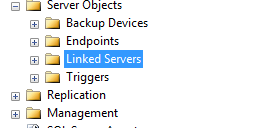
The first step is to create the SQL Linked server. I used SQL Management Studio to do this. Under "Server Objects, right click on "Linked Servers" and the click "New Linked Server".
Here are the settings you need to make. The "Data Source" is the name of your AD server.

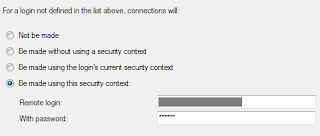
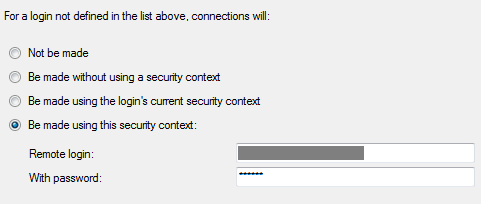
On the "Security" page, enter the security settings:
Create the view:
Finally, add the view into SharePoint as an external data source and use it in your SharePoint list!
The first step is to create the SQL Linked server. I used SQL Management Studio to do this. Under "Server Objects, right click on "Linked Servers" and the click "New Linked Server".

Here are the settings you need to make. The "Data Source" is the name of your AD server.

On the "Security" page, enter the security settings:
Create the view:
CREATE VIEW [dbo].[vwWxyzOffices]
AS
SELECT sn[Country], homephone[Business Phone], l[City], streetAddress[Street Address], postalCode[Postal Code],
mail[Email], facsimileTelephoneNumber[Fax], mobile[Mobile Phone], info[Notes], wWWHomePage[Website]
FROM OPENQUERY(ADSI,
'SELECT givenName, sn, homephone, l, streetAddress, postalCode, facsimileTelephoneNumber,
mail, mobile, info, wWWHomePage
FROM ''LDAP://OU=Contacts,DC=Wxyz,DC=local''
WHERE objectClass = ''contact''  and givenName = ''Wxyz''')
GO
Finally, add the view into SharePoint as an external data source and use it in your SharePoint list!
Thursday, February 23, 2012
SharePoint 2010 - Could not allocate space for object
The day was going along great when all of a sudden a lot of users were experiencing problems with our SharePoint site. I checked the SharePoint log file using the ULS viewer and with the correlation id from one of the errors I found this entry:
Turns out our SQL server is configured to do a daily backup to the same drive as the SQL database files and the drive was full after three months of backups. Isn't that just brilliant! There was no room for the database to grow. I removed some of the old backup files to free up some space and things were back to normal. Just to make sure this problem didn't happen again before we found the time to make this right, I added a cleanup task onto the backup maitenance job so that backup files older then 4 weeks would be deleted.
System.Data.SqlClient.SqlException: Could not allocate space for object 'dbo.AllUserData'.'AllUserData_ParentId' in database 'Insite_Content' because the 'PRIMARY' filegroup is full. Create disk space by deleting unneeded files, dropping objects in the filegroup, adding additional files to the filegroup, or setting autogrowth on for existing files in the filegroup.
at System.Data.SqlClient.SqlConnection.OnError(SqlException exception, Boolean breakConnection)
at System.Data.SqlClient.TdsParser.ThrowExceptionAndWarning(TdsParserStateObject stateObj)
at System.Data.SqlClient.TdsParser.Run(RunBehavior runBehavior, SqlCommand cmdHandler, SqlDataReader dataStream, BulkCopySimpleResultSet bulkCopyHandler, TdsParserStateObject stateObj)
at System.Data.SqlClient.SqlDataReader.HasMoreRows()
at System.Data.SqlClient.SqlDataReader.ReadInternal(Boolean setTimeout)
at System.Data.SqlClient.SqlDataReader.NextResult()
at Microsoft.SharePoint.SPSqlClient.ExecuteQueryInternal(Boolean retryfordeadlock)
at Microsoft.SharePoint.SPSqlClient.ExecuteQuery(Boolean retryfordeadlock)
Turns out our SQL server is configured to do a daily backup to the same drive as the SQL database files and the drive was full after three months of backups. Isn't that just brilliant! There was no room for the database to grow. I removed some of the old backup files to free up some space and things were back to normal. Just to make sure this problem didn't happen again before we found the time to make this right, I added a cleanup task onto the backup maitenance job so that backup files older then 4 weeks would be deleted.
Thursday, February 16, 2012
SharePoint 2010 - Reorder User Profile Properties
Changing the display order of profile properties in SharePoint is a real PITA. There are some scripts you can find on the web to make it easier, but from what I've read people have had mixed results using those scripts. A way that I found that is easy and definitely works is to change the value of the display order in the database table, ProfileSubtypePropertyAttributes, in the Profile database using SQL Manager.
The following SQL script will list the properties along with the display order.
The script will give you a listing like this:

The following update script changes the display order of the property with the propertyID, 10013, to 5304. Note that the numbering for the DisplayOrder field does not have to be sequential. The screen shot above shows the property with the new display order value.
The following SQL script will list the properties along with the display order.
SELECT TOP 1000 [ProfileSubtypeID]
      ,[ProfileSubtypePropertyAttributes].[PropertyID]
      ,[PropertyList].[PropertyName]
      ,[PropertyList].[isSection]
      ,[DisplayOrder]
FROM [Profile DB].[dbo].[ProfileSubtypePropertyAttributes]
join [Profile DB].[dbo].[PropertyList] on propertyList.propertyid = [ProfileSubtypePropertyAttributes].propertyid  where [ProfileSubtypeID] = 1
order by [DisplayOrder]
The script will give you a listing like this:

The following update script changes the display order of the property with the propertyID, 10013, to 5304. Note that the numbering for the DisplayOrder field does not have to be sequential. The screen shot above shows the property with the new display order value.
update [Profile DB].[dbo].[ProfileSubtypePropertyAttributes]
set DisplayOrder = 5304
where propertyID = 10013
Monday, January 16, 2012
MS SQL Import Truncation Error
I was having a problem importing an Excel spreadsheet into SQL Server that I just couldn't figure out.

After many attempts I decided to try importing into MS Access. It worked and it showed me where the errors are!
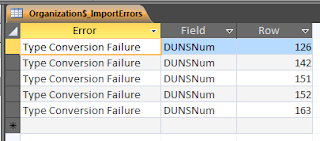
After fixing the errors I imported the Access table into SQL Server.

After many attempts I decided to try importing into MS Access. It worked and it showed me where the errors are!

After fixing the errors I imported the Access table into SQL Server.
Subscribe to:
Posts (Atom)